How do I connect my Google Calendar to Skoop?
No more juggling two calendars and no more double bookings. One connection and you see everything in one place. We'll show you how to set that up in just a few minutes.
Written By Manon
Last updated 8 days ago
What do you need
Access to your Skoop account
The Google account your calendar is on
Using a company Google Workspace account? Then your IT admin has to allow third-party apps. This is usually already enabled, but if you get an error at step 5, have a look at the FAQ below.
Good to know
Your colleagues can't see what's in your calendar. The connection only shares your availability: time slots that are free in your calendar can be booked. What's actually in your calendar stays yours.
The steps
Log in to Skoop via app.skoophr.com/login
Click your own name in the bottom left
Go to Personal settings
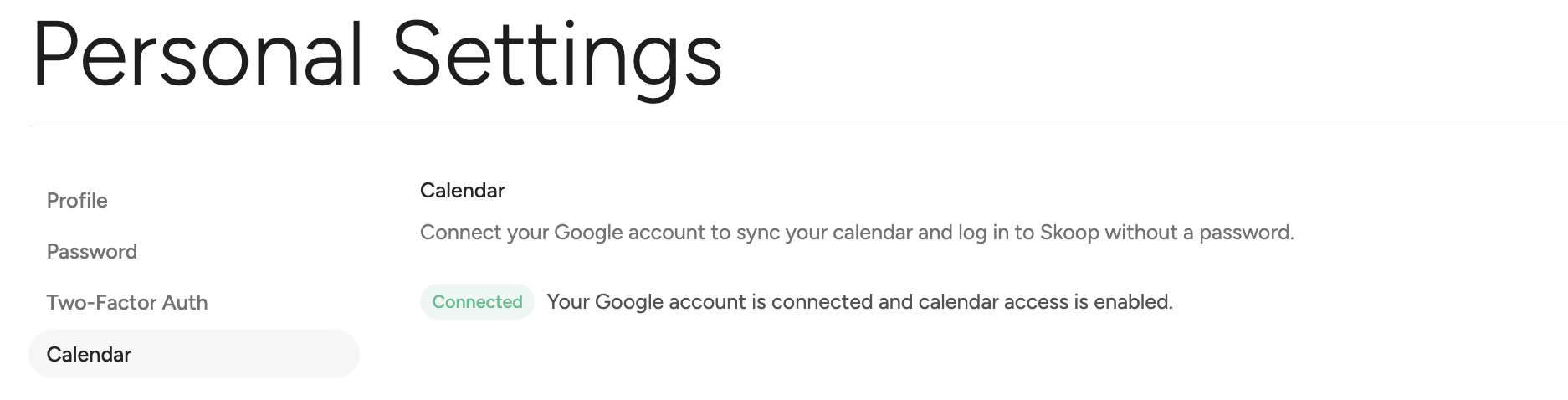
Choose Calendar
Click Continue with Google
Select the email address of the calendar you want to connect
Follow the steps on your screen
How do I know the connection worked?
Go back to Calendar in your personal settings. Is your Google account listed as connected and is calendar access switched on? Then you're all set.
It’s that simple, with Skoop 😉
FAQ
I'm getting an error from Google when connecting, what now?
There's a good chance your company uses Google Workspace and that the administrator has set which apps get access. You'll then see a message along the lines of "this app is blocked" or "access denied by your organization."
This isn't down to you, and it isn't down to Skoop either: it's a security setting your IT admin manages. Ask them to allow Skoop as an approved app, after that you can simply run through the steps again.